
Activate the app embed
The Virtual Try-On button appears through a theme app block called Icona Virtual Try On. Add the block to your theme and keep it active so shoppers can use the feature.
Add the block from the setup guide
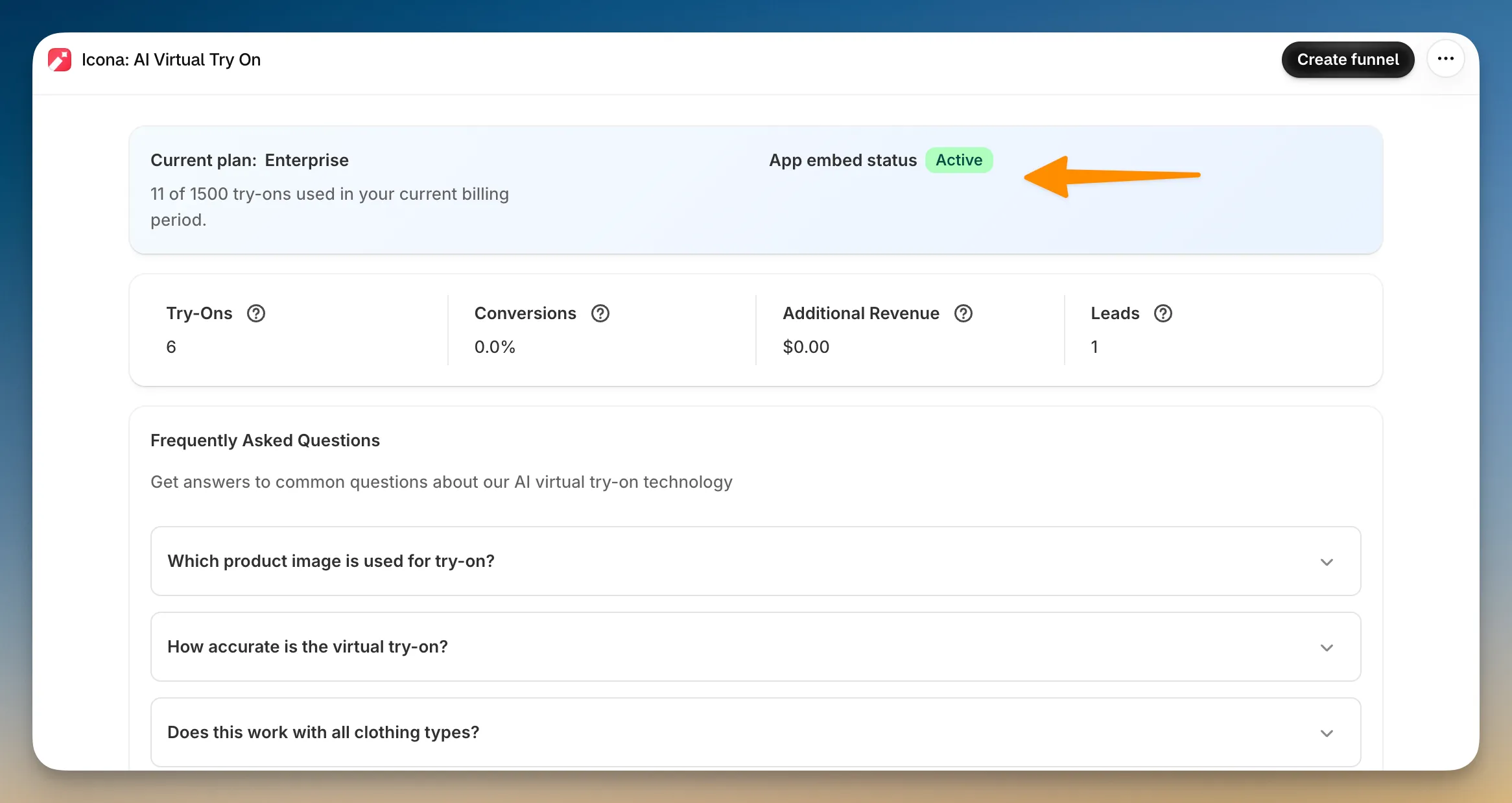
Section titled “Add the block from the setup guide”On the Icona home page, the setup guide shows an App embed status of Active, Inactive, or Unknown.
Click the Activate button. Shopify opens the theme editor with the block already added to your product template. Click the Save button to finish.
Add the block manually in the theme editor
Section titled “Add the block manually in the theme editor”You can also add the block yourself. This is useful if you want to add it to a different theme:
- In Shopify admin, go to Online Store → Themes → Customize.
- Switch the editor to the Products → Default product template.
- Click the Add block button, then choose Apps → Icona Virtual Try On.
- Click the Save button.

You can also add the block to your cart template if you want shoppers to open Virtual Try-On from the cart.
Check the status
Section titled “Check the status”Return to the setup guide and click the Check Status button to refresh the App embed status. If you need help, click the Need help? button to open live chat.
If the button does not appear yet
Section titled “If the button does not appear yet”Adding the block is only one part of the setup. The button appears only on products included in a published funnel.
After you create your first funnel, see Why the button isn’t showing if the button is still missing.
Next, choose a plan for your store.