
Unpublish or turn off a funnel
To stop Virtual Try-On on a funnel’s products, unpublish the funnel. This turns the funnel off by switching it to Draft. The Virtual Try-On button disappears from its products, and Icona keeps the funnel’s settings so you can turn it back on later.
Unpublish a funnel
Section titled “Unpublish a funnel”-
In the Icona app, go to Funnels.
-
Click the funnel you want to turn off, or click its Edit icon.
-
At the top of the page, turn off the Published switch.
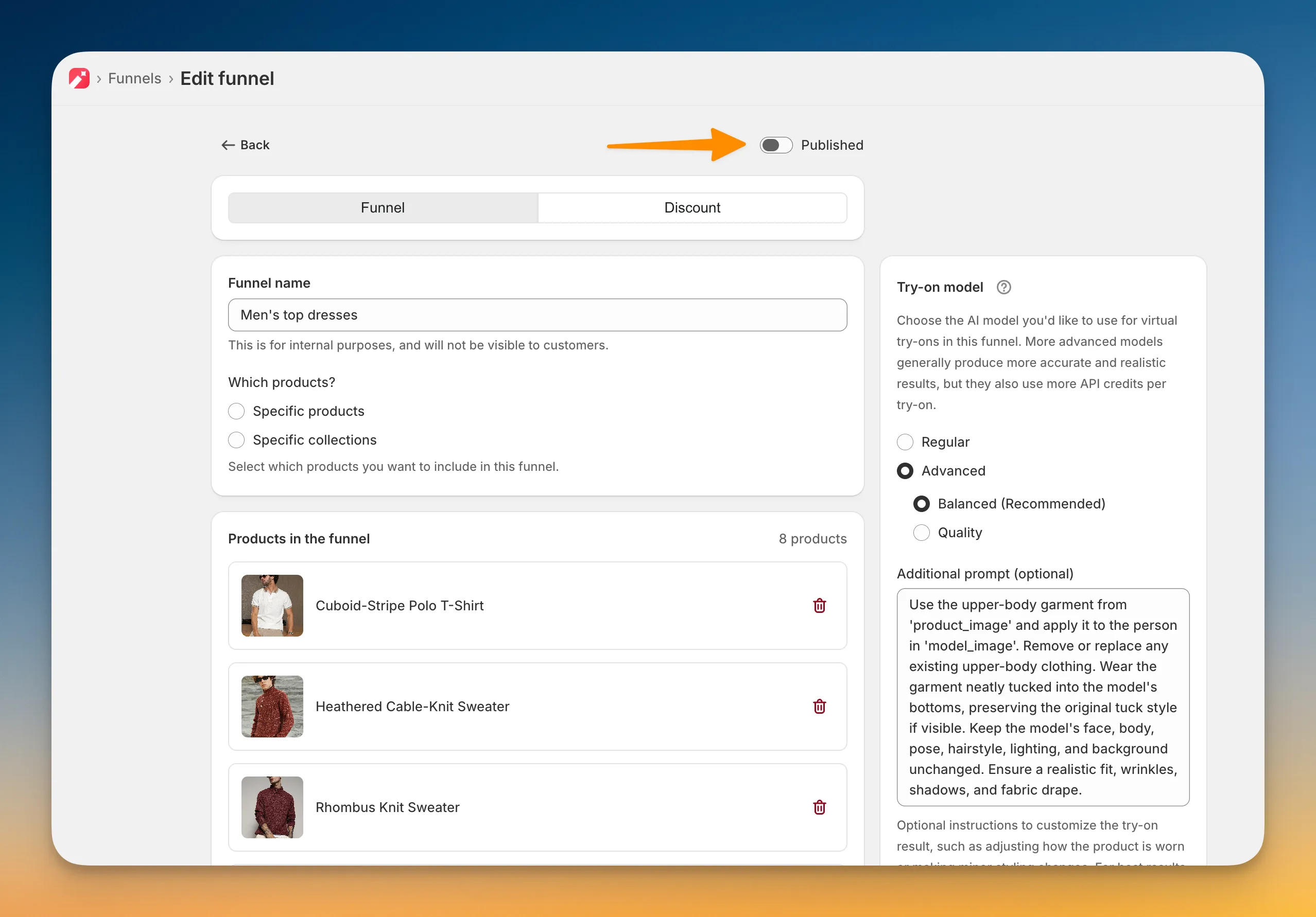
-
Click the Save button in the save bar.
You will see a “Funnel updated successfully!” message. On the Funnels page, the funnel’s status changes from Published to Draft.
What happens when you unpublish
Section titled “What happens when you unpublish”- The Virtual Try-On button is removed from every product in the funnel. Shoppers can no longer start a try-on on those products, so no credits are used.
- The funnel’s products, collections, try-on model, discount, and countdown settings are kept.
- Products in your other funnels keep their button.
- Icona stops following changes to the funnel’s collections while it is a draft. It catches up when you publish the funnel again.
Publish the funnel again
Section titled “Publish the funnel again”To turn the funnel back on, open it, turn on the Published switch, and click the Save button. Icona adds the button back to every product in the funnel.
For collections, Icona uses the products that are in them now. Products added to a collection while the funnel was a draft will get the button too.
Other ways to stop Virtual Try-On
Section titled “Other ways to stop Virtual Try-On”Unpublishing is the best choice when you want to pause a funnel. Depending on your goal, one of these options may fit better.
Remove some products from a funnel
Section titled “Remove some products from a funnel”To stop try-on on a few products while the rest of the funnel stays live, open the funnel and remove those products or collections from it. Then click the Save button. Only the products you removed lose the button.
If a product is in the funnel through a collection, remove that collection from the funnel, or remove the product from the collection in Shopify.
A funnel needs at least one product or collection. To turn off all of its products, unpublish the funnel instead.
Delete the funnel
Section titled “Delete the funnel”If you no longer need a funnel, go to Funnels, click the Delete icon next to it, then click Delete in the dialog. The button is removed from all of the funnel’s products.
Deleting cannot be undone. If you might use the funnel again, unpublish it instead.
Hide the button across your whole store
Section titled “Hide the button across your whole store”To hide Virtual Try-On everywhere without changing any funnels, hide or remove the Icona Virtual Try On block in your theme:
- In Shopify admin, go to Online Store → Themes → Customize.
- Switch the editor to the Products → Default product template.
- Select the Icona Virtual Try On block, then hide it or click Remove block.
- Click the Save button.
If you also added the block to another template, such as your cart, repeat these steps there. On a vintage theme, delete the {% render 'icona-try-on', product: product %} line you added during installation.
To show the button again, follow Activate the app embed.
Return to the Funnels overview to manage your other funnels.