
Discounts and countdown timer
The Discounts step lets you show a discount code after a shopper receives their try-on result. You can also add a countdown timer to encourage them to act sooner.
Turn on a discount
Section titled “Turn on a discount”Turn on Enable discounts to add an offer. Leave No discount selected if you do not want to offer one.
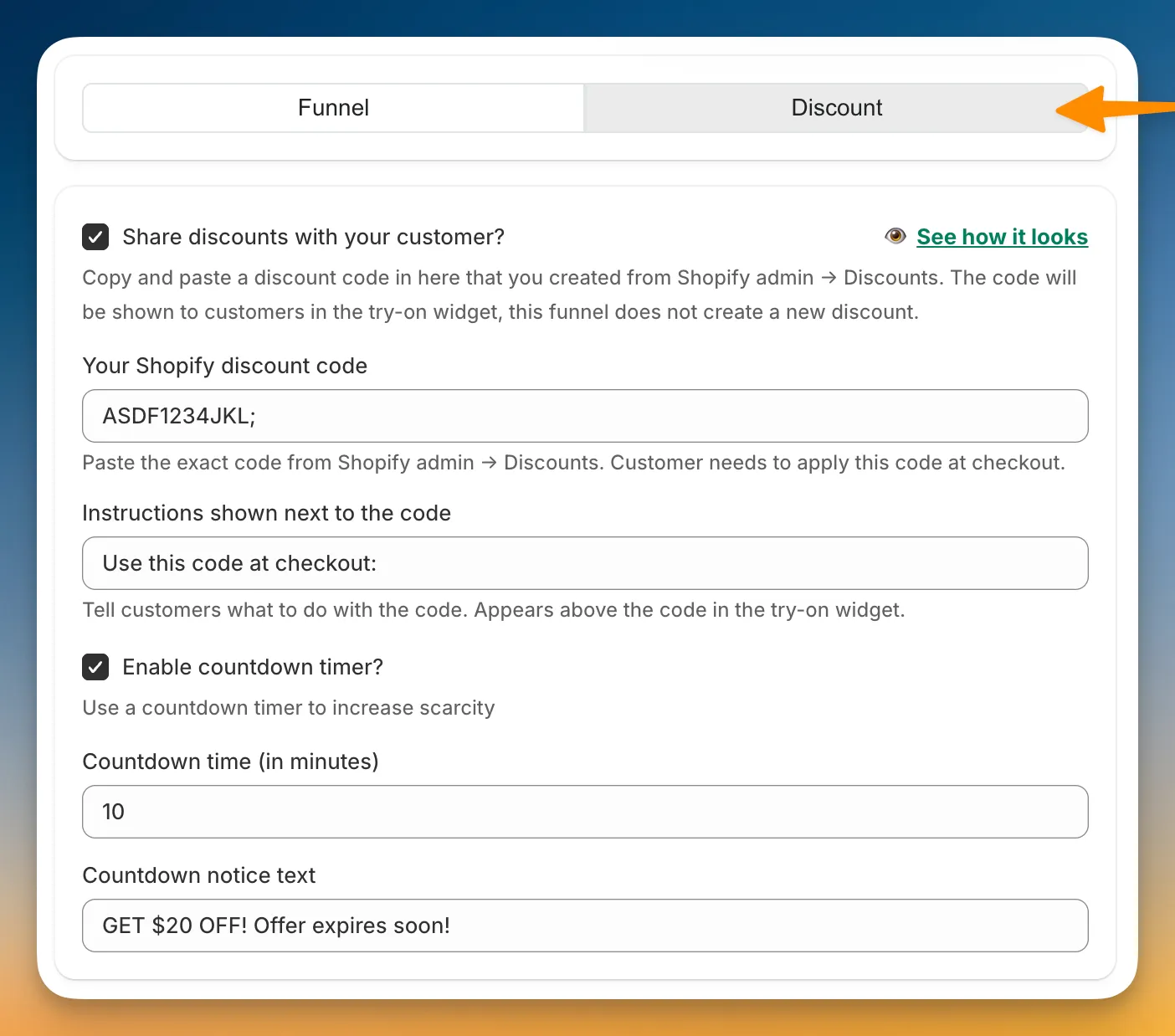
Fields
Section titled “Fields”| Field | Limit |
|---|---|
| Your Shopify discount code | Up to 64 characters. Create the code in Shopify Discounts first. |
| Instructions shown next to the code | Up to 200 characters |
| Enable countdown timer? | On or off |
| Countdown time (in minutes) | A whole number from 1 to 1,440 |
| Countdown notice text | Up to 120 characters |
Countdown timer
Section titled “Countdown timer”Turn on Enable countdown timer? to display a timer beside the offer. The timer uses the duration and notice text you enter.
What shoppers see
Section titled “What shoppers see”The discount appears with the completed try-on result. Shoppers can click the copy button, then apply the code at checkout.
To finish setting up the funnel, continue to Publish or save as draft.