
Products and collections
The Products step controls where the Virtual Try-On button appears. Add at least one product or collection to continue.
Pick specific products
Section titled “Pick specific products”Use Specific products to search for and add individual products by name.
Pick collections
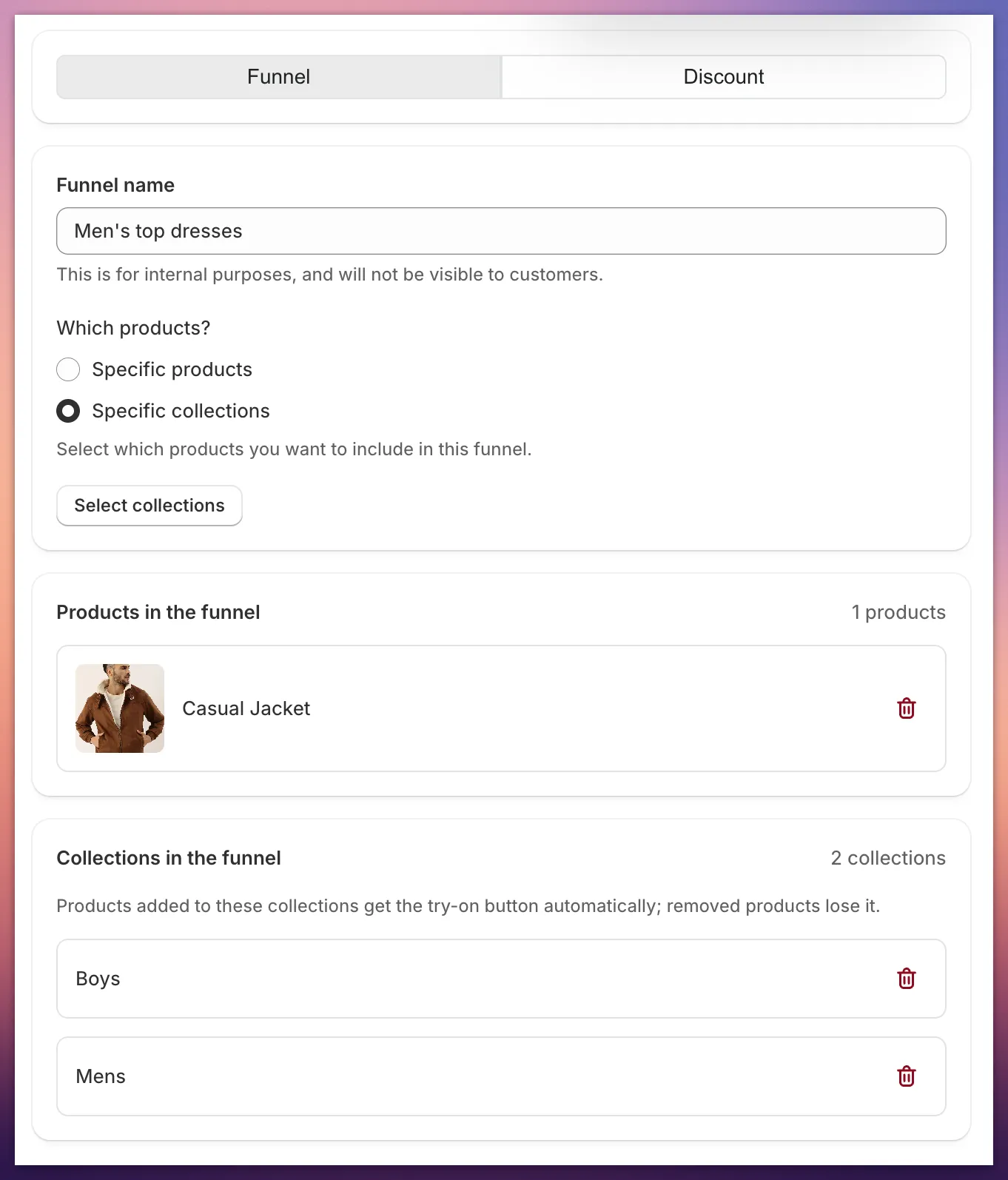
Section titled “Pick collections”Use Collections to add an entire collection at once. Collection assignments stay up to date automatically. Products added later will get the button, while products removed from the collection will lose it.
Mixing both
Section titled “Mixing both”You can add both individual products and collections to the same funnel. Everything you select will be included.
What happens when a collection changes
Section titled “What happens when a collection changes”You do not need to update the funnel whenever a collection changes. Icona follows the current products in that collection.
A product can belong to only one funnel at a time. Adding it to a collection used by another funnel will not create a second button.
Next, choose how images are generated in Try-on models and credits.